 | Please note this documentation covers the new version of CCTray included in CruiseControl.NET version 1.0 |
CCTray is an optional utility for use with the CruiseControl.NET Continuous Integration server. It provides feedback upon build progress, and allows control over some of the server's operations.
Main features
- Monitor multiple projects on many build servers
- Identify the build status with a glance to the system tray
- See the status of individual builds in a popup window
- Audio/Visual feedback upon completion of builds, indicating success or failure
- Force a build from any PC (when the CruiseControl.NET server is sleeping)
Main window
The CCTray user interface is modelled on popular Instant Messaging application user interfaces.
- To exit, choose Exit from the file menu or from the tray icon right click menu
- Closing the main window does not exit the CCTray
- Double-click the tray icon to redisplay the main window
The main window shows a list of all the builds that CCTray is monitoring. For each build, some status information is shown along with an icon that indicates the build status.

The colour of the CCTray icon conveys information about the CruiseControl.NET server's state:
 The most recent build was successful
 The most recent build failed
 The server is unavailable, or returned an error status
 The server is currently building the code.
Right-clicking on a project displays a popup menu:
- Force build Wakes the CruiseControl.NET server from its sleep and tells it to start building immediately.
- Display Web Page Opens a browser at the CruiseControl.NET build web page for this project. The web page may also be launched by double-clicking the project.
- Volunteer to fix build If the build for the selected project is currently broken, then this option will be visible. By selecting this option, the user is telling all of the other people on the project that they have volunteered to take responsibility for resolving the broken build. Selecting this option will cause a message balloon to appear for every cctray user monitoring the broken project informing them that the user is fixing the build.
Tray Icons
CCTray displays an icon in the windows system tray indicating a summary of the status of all of the builds it is monitoring.

The following rules are applied, in this order, to determine the icon colour:
- If at least one build is red, the icon is red
- If no builds are red but at least one is yellow, the icon is yellow
- If no build are red or yellow, but least one is grey, the icon is grey
- If all the builds are green, the icon is green
Balloon notifications
Ballon notifications use the standard Windows tray icon popup balloon whenever a build completes. Balloon notifications may be enabled/disabled.
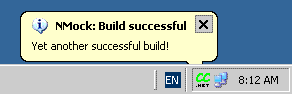
Menu options
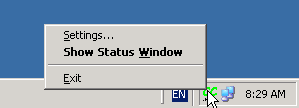
Right-clicking the CCTray system tray icon displays a menu with several options:
- Settings...
- Displays the settings form, from which you may configure CCTray.
- Show Status Window
- Display the main status window. Double-clicking the tray icon does this too.
- Exit
- Closes the CCTray application.
Configuration
CCTray's configuration settings is stored in the file "cctray-settings.xml" (see a sample), which is located in your user application data directory (normally c:\Documents and Settings\<username>\Application Data). As of the 1.1 release, it is possible to override the location of the configuration settings file by specifying its path on the command line. The usage is:
cctray.exe [settings_file_path]
The CCTray configuration file may be hand edited, though it's simpler to use the settings form. To launch the settings form, right-click the tray icon and select 'Settings...'.

Poll every n seconds
CCTray detects changes in the CCNet server state by polling at regular intervals. This value sets the period between polls.
When I double-click the tray icon
Selecting "show the status window" causes the main window status to be displayed when the tray icon is double clicked.
Selecting "navigate to the web page of the first project on the list" causes the configured web page to be displayed. The order of projects can be changed by using the "move up" and "move down" buttons at the bottom of the screen.
Show balloon notifications
Enables or disables notification of completed builds via balloon messages.
Audio
The location of audio files to play upon completed builds. The checkbox enables individual sounds. Use the Browse button to browse for the wav file, and the play button to preview the sound.
Show balloon notifications
Enables or disables notification of completed builds via balloon messages.
Build servers
Allows configuration of the build projects that CCTray should monitor.
Advanced settings
Two configuration settings can be adjusted only by editing the configuration file directly:
- Balloon messages
- Icons
See the example settings file for an example.
FAQ
"Launch web page" doesn't display the right URL... help!
The URL at which your CruiseControl.NET build results are available is in the server configuration, the "webURL" element in ccnet.config. Ensure that your server's configuration has a fully qualified host name (not just localhost).
I've selected "Notification Balloon", but it only flickers onto the screen momentarily.
This has been observed in cases where an envelope icon appears in the system tray (indicating you've got mail – probably a build report) which nudges the CCTray icon aside, causing the notification balloon to disappear.
I get an error "image could not be added to the imageList" during the install and the cctray system tray icon shows up as a black square. What's going on?
We've traced this to a problem with McAfee 8.0 (and potentially earlier versions). It looks like the latest patch (patch level 11) resolves the issue.
I've found a bug. Who can I tell?
Please send help requests to the CCNet user mailing list: ccnet-user@lists.sourceforge.net.
 cctray-buildcomplete.GIF (image/gif)
cctray-building.GIF (image/gif)
cctray-contextmenu.gif (image/gif)
cctray-mainwindow.GIF (image/gif)
cctray-status.GIF (image/gif)
cctray-settings.GIF (image/gif)
cctray-icon-small-green.png (image/x-png)
cctray-icon-small-grey.png (image/x-png)
cctray-icon-small-red.png (image/x-png)
cctray-icon-small-yellow.png (image/x-png)
cctray-settings.GIF (image/gif)
cctray-buildcomplete.GIF (image/gif)
cctray-building.GIF (image/gif)
cctray-contextmenu.gif (image/gif)
cctray-mainwindow.GIF (image/gif)
cctray-status.GIF (image/gif)
cctray-settings.GIF (image/gif)
cctray-icon-small-green.png (image/x-png)
cctray-icon-small-grey.png (image/x-png)
cctray-icon-small-red.png (image/x-png)
cctray-icon-small-yellow.png (image/x-png)
cctray-settings.GIF (image/gif)


